Program your U-verse TV remote control with the setup tool
Our U-verse TV Remote Control Setup tool can guide you through programming your remote to control your TV and other devices.
Using the U-verse TV Remote Control Setup tool
Control your TV and other devices regardless of which remote you have. Here’s all you need to do:
- With your TV on, use your U-verse TV remote and press Menu.
- Select Help > Information > Remote Control Setup.
- Next, select your remote control from the TV onscreen list. Refer to your specific remote for TV/device setup options.
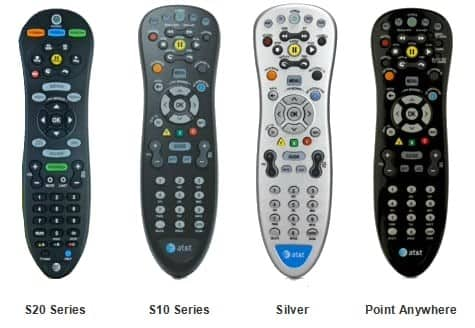
- Select Top Ten Brand Setup, Automatic Code, or Manual Setup. Here's a brief description of each option:
- Top Ten Brand Setup - A quick way to program for popular TV brands. (After choosing this option, select TV or Audio Device, and then select your brand.)
- Automatic Code Search - Your remote searches for the right device code. (After choosing this option, select TV or Audio Device, and then follow the instructions.)
- Manual Setup - You search for the code and enter it for your device. (After choosing this option, enter the letters of your device brand name and follow the instructions.)
Note: The S20 and S30 remote controls are completely identical in functionality. The only difference is all of the buttons on the S30 model are backlit. Please follow the S20 instructions for the S30 remote.
Last updated: December 7, 2022