Enable your Wi-Fi network security - Westell 327
Set security for your Wi-Fi home network to protect your network from unwanted users. To get extra protection, enable a WPA (Wi-Fi Protected Access) password.
You’re viewing instructions for
Internet equipment
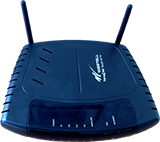
Westell
327W
KM1068101-slctrgrp_west327w
Protect your network
Setting a password for your Wi-Fi home network is a smart, easy way to protect your network from unwanted users. Your AT&T Wi-Fi gateway comes with the security on and set to WEP (Wired Equivalent Privacy) by default. If you have turned your security off and want to turn it back on, or want to change to WPA (Wi-Fi Protection Access) security, we can help with that.
WEP is the default set up for your Wi-Fi network, but WPA (Custom) is a more secure option to provide better data protection and access control.
WEP is the default set up for your Wi-Fi network, but WPA (Custom) is a more secure option to provide better data protection and access control.
- Go to your gateway settings.
- Select Wireless.
- In the Device Access Code field, enter the Device Access Code (found on the side your gateway).
- Scroll to the WPA/WPA2 section.
- In the WPA/WPA2 Network Key, enter a new Wi-Fi password.
- Select Save.
Last updated: December 7, 2022