Find Wi-Fi info
Get your Wi-Fi® name and password to connect devices to your network:
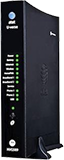
- Wi-Fi gateway: Look for a sticker with your Wi-Fi name and password.
- QR code: Use your mobile device to automatically connect devices to your hub.
- Smart Home Manager: Open Smart Home Manager and look for My Wi-Fi.
Change Wi-Fi name
- Sign in to Smart Home Manager.
- Scroll to the My Wi-Fi card and choose Change next to the name or password.
- Select X to clear existing info, then enter a new name or password.
- Select Save.
Once you finish making changes, reconnect your devices with the updated network info.
FYI: You can also update your Wi-Fi from your Wi-Fi gateway settings.
Manage Wi-Fi security
Your AT&T Wi-Fi gateway comes with the security On and set to WPA (Wired Equivalent Privacy) by default. If you have changed the security to OFF, follow these steps to turn it back on.
- Go to your gateway settings.
- Select Home Network, then Wireless.
- Enter the Modem Access Code in the Password field. You can find the code on your gateway.
- Scroll to the Security section and select WPA-PSK from the Security dropdown.
- Enter a new Wi-Fi password (Wireless Key) in the Key field.
- For 64-bit encryption, enter a 10-digit password made up of numbers and letters a-f or A-F.
- For 128-bit encryption, enter a 26-digit hexadecimal number made up of numbers and letters a-f or A-F.
- Select Save.
