Transfer Photos & Videos
Motorola one 5G ace (XT2113-5)
Transfer Photos & Videos
Transfer files to or from your device and a computer.
INSTRUCTIONS & INFO
In this tutorial, you will learn how to:
• Transfer Media to or from a PC
• Transfer Media to or from a Mac
Transfer Media to or from a PC
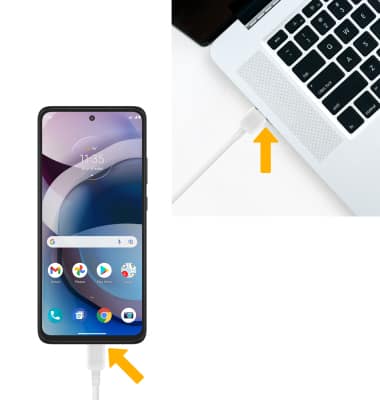
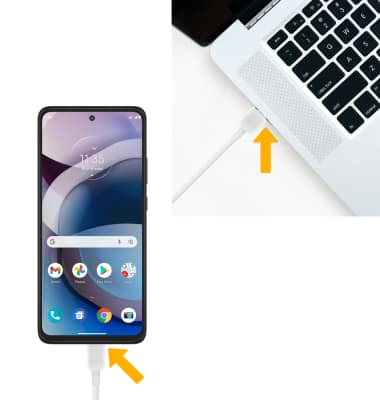
1. With the device powered on, insert the USB-C end of the USB-C cable into the port on the bottom of the device. Insert the USB end of the USB-C cable into an open port on the computer.
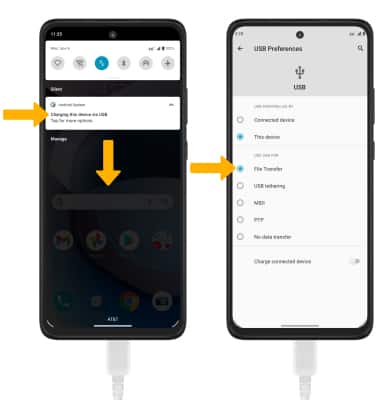
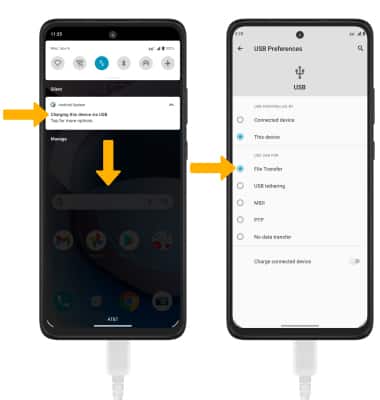
2. To place the device into the correct USB mode, swipe down from the Notification bar then select the Android System drop down menu > Charging notification > File Transfer or PTP.
3. Click the File Explorer icon, then click This PC.
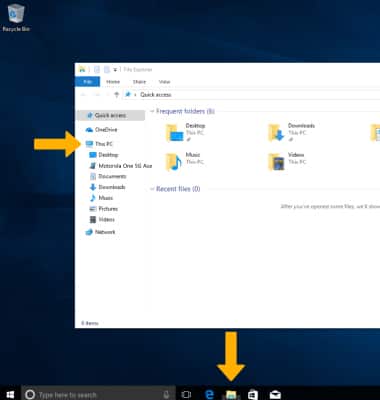
4. Click the device name, then navigate to the desired folder.
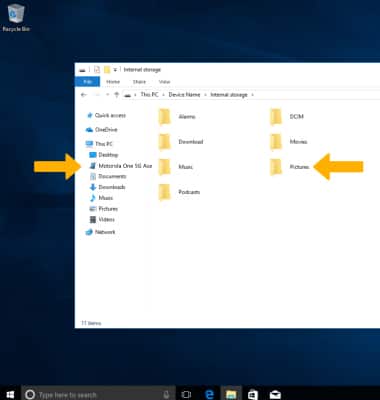
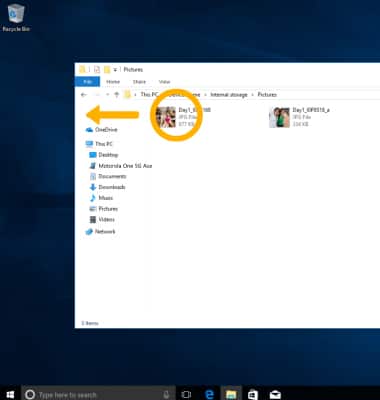
5. Drag and drop files to/from the device drive to transfer.
Transfer Media to or from a Mac
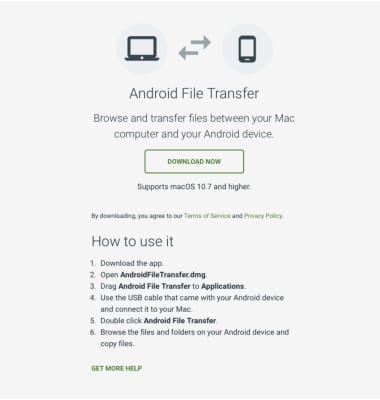
1. You need the Android File Transfer app to facilitate communication between your device and a Mac computer. Download and install the Android File Transfer app.
2. With the device powered on, insert the USB-C end of the USB-C cable into the port on the device. Then insert the USB end of the USB-C cable into an open port on the computer.
2. With the device powered on, insert the USB-C end of the USB-C cable into the port on the device. Then insert the USB end of the USB-C cable into an open port on the computer.
3. To place the device into the correct USB mode, swipe down from the Notification bar then select the Android System drop down menu > Charging notification > File Transfer or PTP.
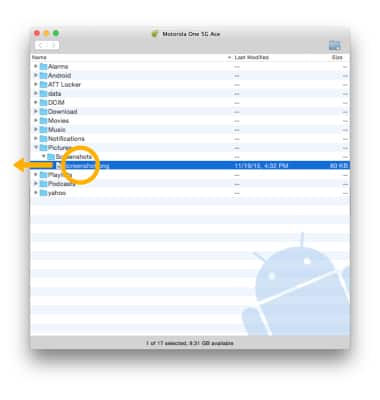
4. Once the phone is connected to the computer, the Android File Transfer app will open automatically. Drag and drop the desired files to/from the device to transfer.