In this tutorial, you will learn how to:
• Access email settings
• Change email account server settings
• Change your email signature
• Change email sync frequency
• Add email accounts
• Delete an email account
Access email settings
1. From the home screen, select the  Settings app.
2. Scroll to and select Apps > Mail > select Mail Accounts. 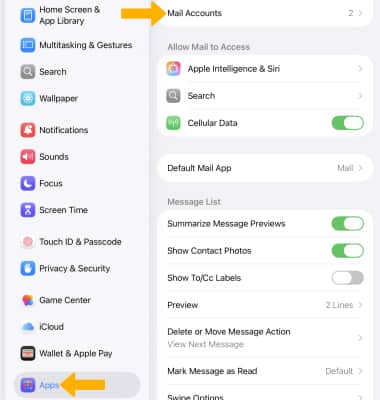
Change email account server settings
1. Select the desired account.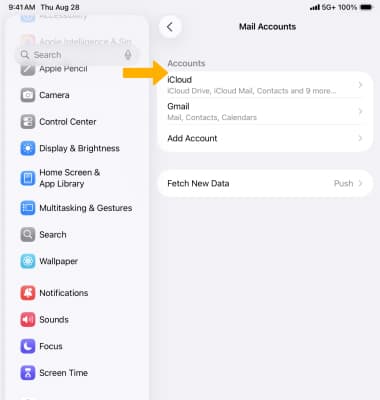
2. Select Account Settings. 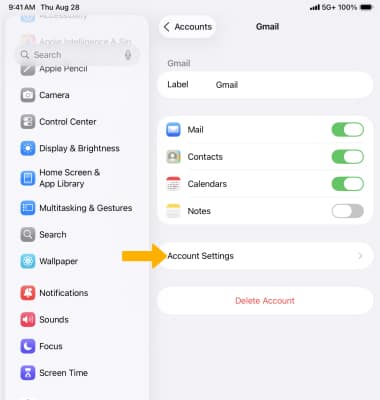
3. Edit the desired incoming and outgoing server settings, then select Done.
Note: If not shown, incoming server settings can be found under Advanced. 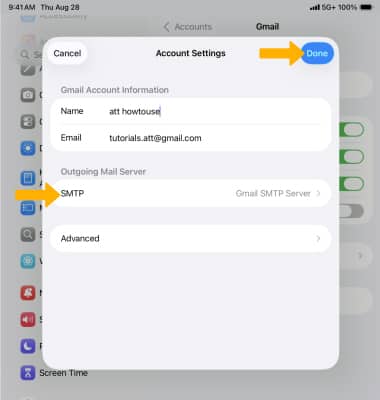
Change your email signature
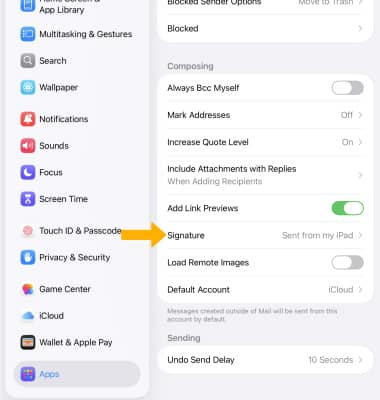
1. From the Mail settings screen, scroll to and select Signature.
2. Edit the signature as desired, then select the back arrow when finished.
Note: Options may vary based on the configured account types. 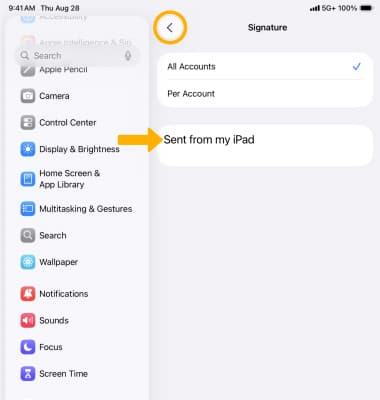
Change email sync frequency
1. From the Mail Accounts screen, select Fetch New Data. 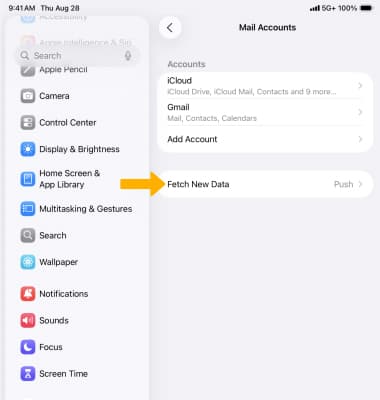
2. Scroll to and select the desired sync frequency schedule.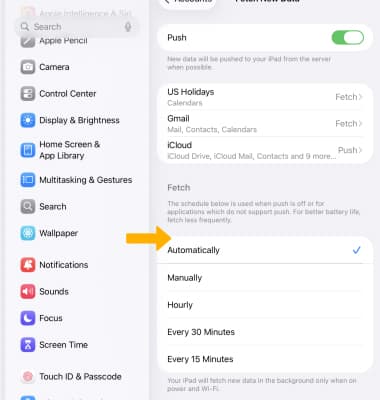
Add email accounts
From the Mail Accounts screen, select Add Account, then follow the prompts to add a new email account. 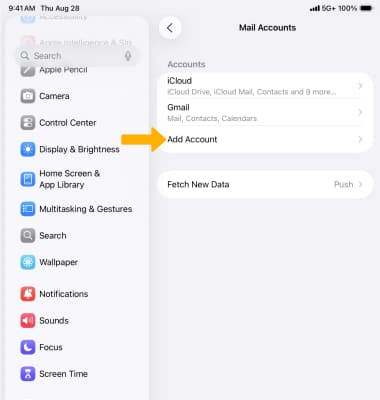
Delete an email account
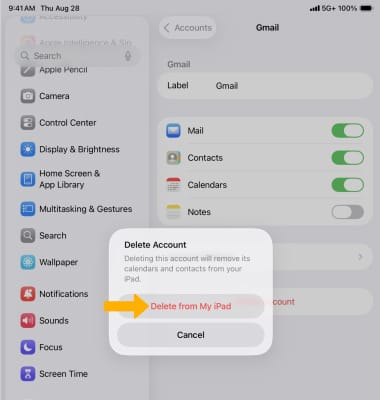
From the Mail Accounts screen, select the desired email account > Delete Account > Delete from My iPad.